ANTHBOT Mapping Problem: Fix Failed Maps and Boundaries
An ANTHBOT mapping problem can result from incomplete setup, weak positioning, poor station placement, an interrupted app session, or a boundary that is too complex. Confirm the selected mapping mode first.
Reviewed by the RobotMower.help editorial team. Independent guidance based on the manufacturer source linked below.
Quick answer
Finish RTK and station setup, place the mower on the powered station, confirm a stable app connection, select the intended mapping mode, and test a simple open zone.
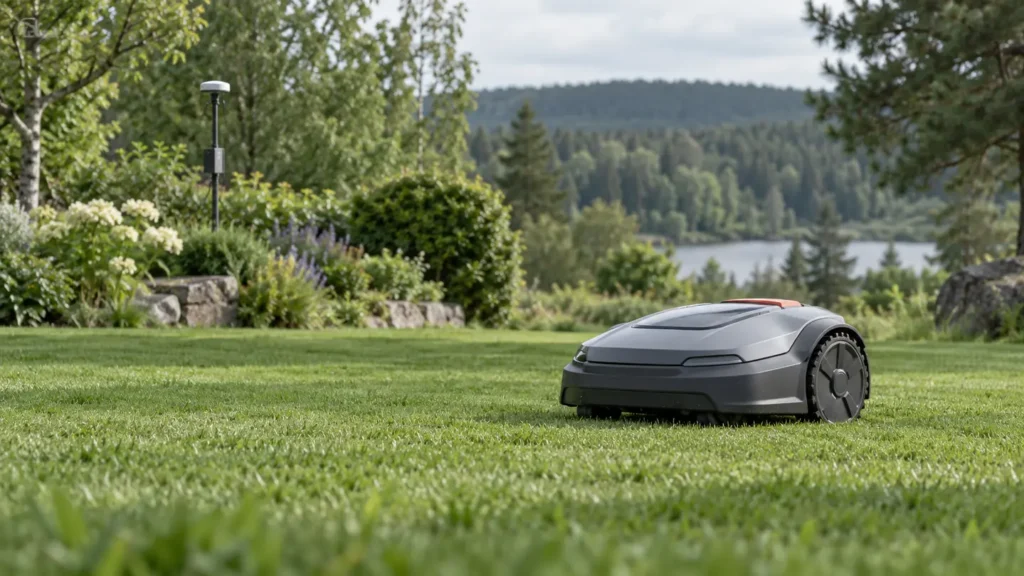
Illustrative troubleshooting image; not a manufacturer product photo.
Fix it in this order
- Finish beginner setup
Confirm station, RTK, mower, and app are added in the documented order. - Check station and RTK placement
Use a stable location with clear approach and broad sky view. - Choose the mapping mode
Use manual mapping for irregular edges if automatic mapping cannot identify them. - Create a simple zone
Start with an open rectangle near the station. - Leave safety clearance
Keep distance from water, steps, walls, roots, and drop-offs. - Simplify channels
Use wide direct passages and gentle turns. - Supervise the first run
Confirm saving finishes before watching a short edge test.
What usually causes this?
Unfinished binding, poor RTK visibility, unstable hardware, wrong mapping mode, interrupted connectivity, complex boundaries, narrow passages, overlapping exclusions, or blocked sensors commonly cause failures.
How to verify the fix
The map should reopen with the same alignment and a supervised short run should respect the outer boundary and exclusions.
Do not skip this check: a cleared warning is not proof of a repair. Confirm the mower completes the affected action under supervision before restoring unattended schedules.
Frequently asked questions
Should I delete the map first?
No. Fix power, connectivity, positioning, and hardware placement first. Remapping can hide the original cause.
Should I install an update?
Install only an official update offered for your exact model and keep power and connectivity stable.
When should I stop?
Stop for damaged wiring, unusual heat, battery swelling, burning odor, water inside electrical parts, or repeated hardware faults.
When to contact support
Contact ANTHBOT if a simple open zone cannot be created after the official beginner setup. Send screenshots, light photos, model, app and firmware details, and a recording.
Source and scope
Primary reference: ANTHBOT official beginner guide.
RobotMower.help is independent and is not affiliated with or endorsed by ANTHBOT. Product behavior can vary by model and firmware.