ANTHBOT RTK Not Connecting: Setup and Signal Checklist
If ANTHBOT RTK is not connecting, identify whether the reference lacks power, lacks sky view, is not bound, or cannot send correction data to the mower. Avoid moving it before that diagnosis.
Reviewed by the RobotMower.help editorial team. Independent guidance based on the manufacturer source linked below.
Quick answer
Confirm RTK and station power, inspect connectors, provide a broad sky view, complete app binding, and test the mower in an open area. Record lights before restarting.
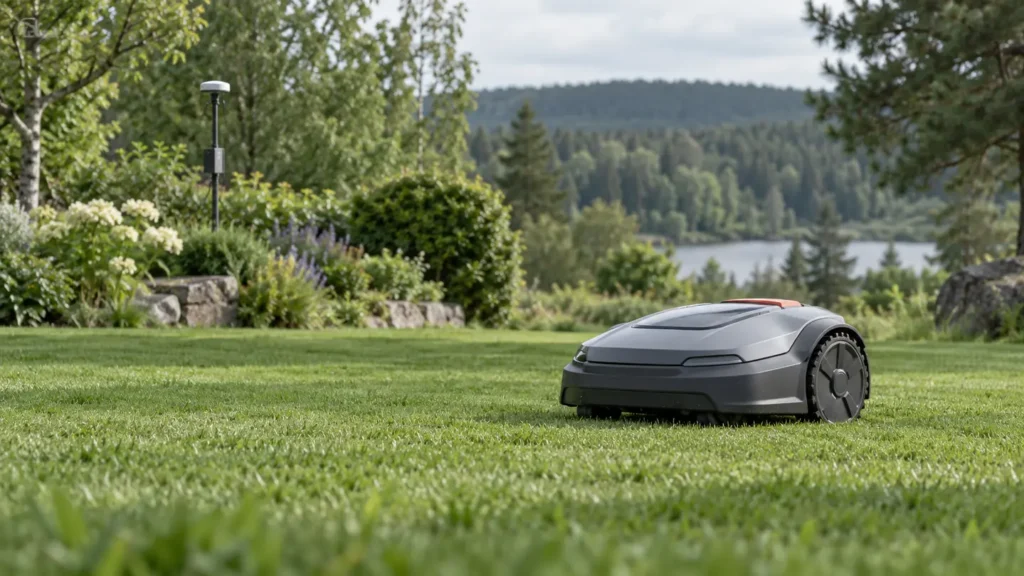
Illustrative troubleshooting image; not a manufacturer product photo.
Fix it in this order
- Photograph indicators
Capture RTK, station, mower lights, and the exact app message. - Confirm setup order
Revisit any unfinished station, RTK, mower, or app binding step. - Inspect power and cables
Check outlet, adapter, connectors, cable, and moisture exposure. - Improve sky visibility
Avoid roofs, dense trees, balconies, and metal structures; secure the mount. - Check app binding
Use the intended installation and account and allow required phone permissions. - Test in open sky
Allow time for the displayed status to stabilize. - Restart once
Use the official sequence and install only supported updates.
What usually causes this?
Missing power, loose connections, obstructed sky, a moving reference, incomplete binding, network interruption, or firmware mismatch are the usual causes.
How to verify the fix
The app should show stable positioning, the mower icon should match its real location, and a supervised route should run without drift.
Do not skip this check: a cleared warning is not proof of a repair. Confirm the mower completes the affected action under supervision before restoring unattended schedules.
Frequently asked questions
Should I delete the map first?
No. Fix power, connectivity, positioning, and hardware placement first. Remapping can hide the original cause.
Should I install an update?
Install only an official update offered for your exact model and keep power and connectivity stable.
When should I stop?
Stop for damaged wiring, unusual heat, battery swelling, burning odor, water inside electrical parts, or repeated hardware faults.
When to contact support
Send ANTHBOT the model, serial number, indicator and mounting photos, screenshots, firmware versions, and a timeline of setup changes.
Source and scope
Primary reference: ANTHBOT official beginner guide.
RobotMower.help is independent and is not affiliated with or endorsed by ANTHBOT. Product behavior can vary by model and firmware.